Best AI Tool for Amazon Advertising Optimization: What Sellers Should Know
Best AI Tool for Amazon Advertising Optimization: What Sellers Should Know Choosing the best AI tool for Amazon advertising optimization…
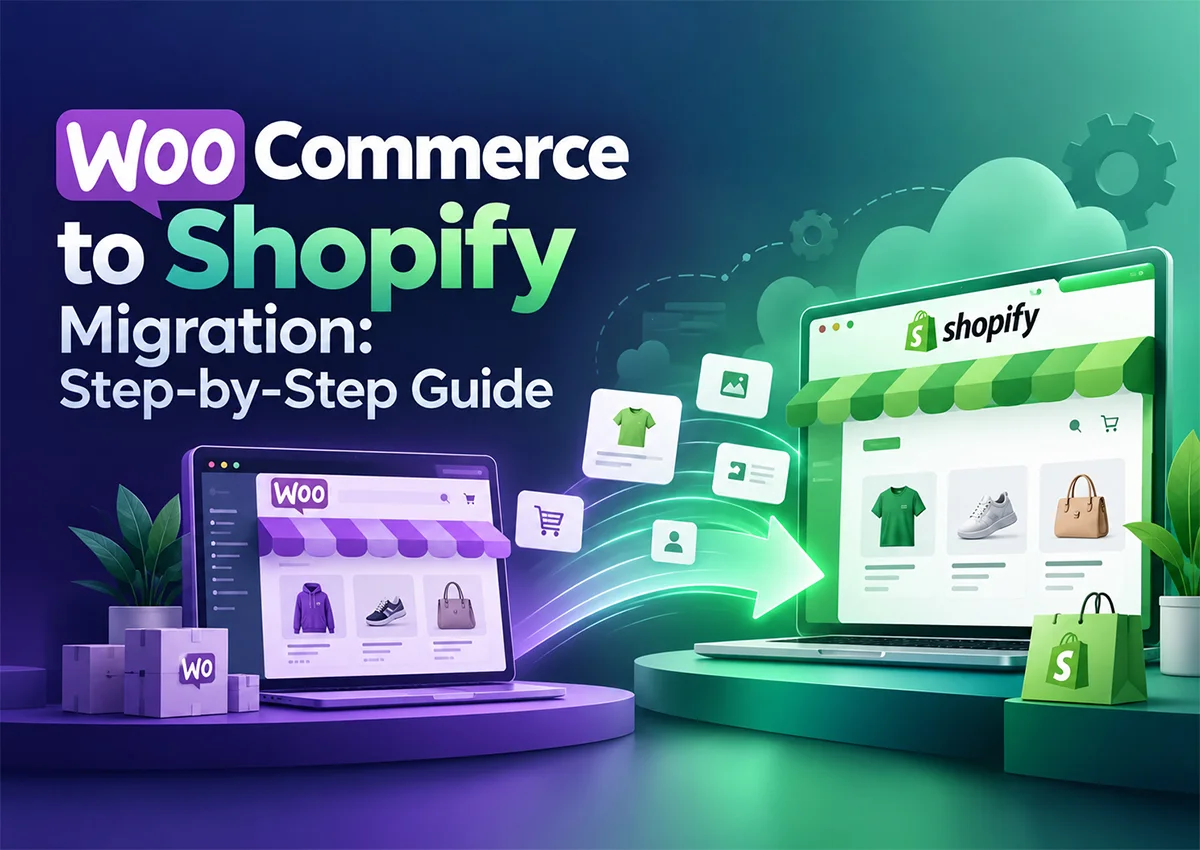
Planning a WooCommerce to Shopify migration? Moving your store isn’t just about transferring products. You also need to protect SEO rankings, preserve customer data, and ensure checkout works properly.
WooCommerce offers flexibility through WordPress, plugins, and custom development. Shopify, on the other hand, provides managed hosting and an integrated commerce platform. The right choice depends on your store’s needs.
This guide explains how to migrate from WooCommerce to Shopify, avoid common mistakes, and prepare your new store for growth.
A successful WooCommerce to Shopify migration involves backing up your existing store, transferring products and customer data, rebuilding essential functionality, configuring Shopify URL redirects, and testing the new storefront before launch. A structured migration helps reduce downtime, data loss, and organic traffic disruptions.
Keep a recoverable copy of your WooCommerce store.
Β Not every plugin or feature has a direct Shopify equivalent.
Map old URLs to relevant Shopify pages.
Verify products, checkout, payments, and mobile usability.
Track traffic, indexing, and conversions.
WooCommerce gives merchants extensive control over their WordPress website, hosting, and customization. However, managing updates, plugins, security, and performance can require ongoing technical work.
Shopify simplifies much of the infrastructure and store management. Still, certain custom features may require Shopify apps, theme development, or alternative workflows.
Don’t migrate simply because Shopify is popular. Identify the operational problems you’re trying to solve first. Otherwise, you may transfer the same problems to a new platform.
Before you migrate from WordPress to Shopify, back up your database and website files. Record your product URLs, customer data, orders, blog posts, plugins, and current SEO performance.
Also, list the features your store depends on, such as subscriptions, product bundles, or custom checkout functionality.
Create your Shopify store and configure its settings. Choose a theme, set up shipping and payment options, define tax settings, and review your navigation.
Don’t rush into importing everything. First, decide how your new store should work.
You can import WordPress products to Shopify using CSV files or compatible migration apps. Export your WooCommerce products, review the data, and map fields to Shopify’s import format.
Check product titles, descriptions, SKUs, prices, images, inventory, variants, and collections. Customer records and order history may require separate handling.
Krolog helped a skincare store migrate its 200-product catalog from WooCommerce to Shopify, including products with multiple sizes and variants. By checking product data, variant SKUs, and inventory quantities during the migration, the team helped ensure customers could select the right options and see accurate stock availability.Β
Testing the imported catalog before launch helped identify potential issues before they affected the shopping experience.
Shopify won’t automatically recreate every WordPress plugin or custom function. Find suitable Shopify apps or develop alternatives for reviews, subscriptions, email marketing, and other essential features.
Keep the customer experience consistent, but avoid installing unnecessary apps. Too many overlapping tools can increase costs and complicate store management.
WordPress and Shopify often use different URL structures. Create Shopify URL redirects from important old URLs to their most relevant new pages.
Prioritize high-traffic product pages, category pages, and blog posts. Update internal links, submit your Shopify sitemap to Google Search Console, and monitor crawl errors after launch.
Before switching your domain, test mobile layouts, product variants, payment processing, shipping calculations, discount codes, and order confirmation emails.
After launch, monitor organic traffic, indexed pages, broken links, and conversion rates. Fix issues quickly rather than waiting for rankings or sales to decline.

From product and customer data migration to store setup, URL redirects, and SEO preservation, Krolog helps you move from WooCommerce to Shopify with a structured migration strategy.
Use this Shopify migration checklist before and after launch:
A WooCommerce to Shopify migration can simplify store operations, but only when the move is planned around your business requirements. Data accuracy, feature compatibility, and SEO preservation deserve as much attention as the new design.
Krolog helps businesses plan Shopify migrations, develop storefronts, and optimize the customer journey. Our team can help you move platforms without overlooking the details that keep your store running.
Yes, you can migrate products, customer records, and selected content using CSV files or migration tools. Some functionality and data require manual work or third-party apps.
A small store may take days, while a complex store with custom functionality and extensive data can take several weeks. The timeline depends on catalog size, integrations, and testing requirements.
Compare migration apps based on supported data types, order history transfer, URL mapping, pricing, and support. Verify current capabilities before choosing a tool.
It can. URL changes, missing redirects, altered content, and indexing problems may affect rankings. Careful planning and post-launch monitoring help reduce these risks.
Yes. Product variations, such as sizes, colors, and other options, can be transferred to Shopify. However, variant SKUs, pricing, images, and inventory quantities should be checked after migration to ensure everything transfers correctly.
A migration does not automatically cause ranking losses, but incorrect URL changes, missing redirects, broken links, and lost metadata can affect organic visibility. Preserve important URLs where possible, implement 301 redirects, and monitor Google Search Console after launch.
Customer information can generally be imported, subject to data compatibility and consent requirements. However, existing customer passwords typically cannot be transferred directly, and historical order migration may require a dedicated app or migration service.
Review product pages, variant options, pricing, inventory, payment gateways, shipping rates, tax settings, mobile responsiveness, checkout, analytics, and URL redirects. Place test orders before making the new store live.
A migration app may work well for a straightforward store with a small catalog and limited custom functionality. An agency may be a better fit if your store has complex product variations, custom integrations, extensive order history, or SEO requirements. Krolog can help businesses plan their Shopify migration, transfer store data, configure the new storefront, and address technical and SEO considerations.
Yes. You can connect your existing domain to Shopify instead of changing your store's primary domain. Before launch, verify the domain settings, test important URLs, and configure redirects for any pages whose URLs have changed.
Sandeep K. is the Founder and CEO of Krolog, with over 10 years of experience in ecommerce growth, marketplace strategy, and digital commerce solutions.
Best AI Tool for Amazon Advertising Optimization: What Sellers Should Know Choosing the best AI tool for Amazon advertising optimization…
Amazon Black Friday Deals: How to Qualify, Submit, and Choose Between Lightning Deals and Best Deals Black Friday can bring…
WooCommerce to Shopify Migration: Step-by-Step Guide Planning a WooCommerce to Shopify migration? Moving your store isn’t just about transferring products.…
Krolog was born from a simple yet powerful idea: to empower businesses with the tools and strategies needed to thrive in the ever-evolving digital marketplace. Our journey is a testament to the transformative impact of strategic E-commerce solutions.


Copyright Β© 2026 All Right ReservedΒ